



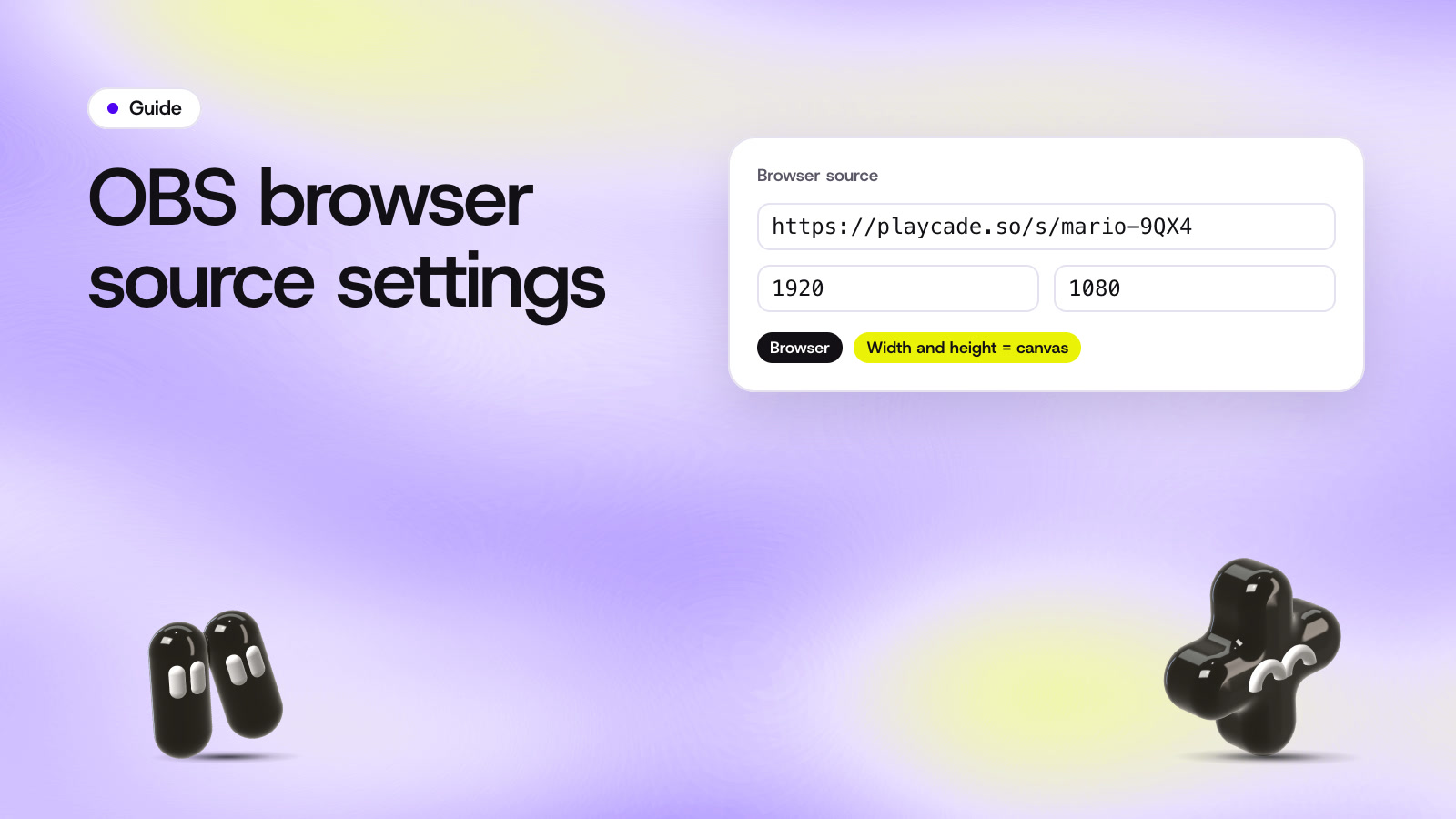
To add a Browser source in OBS, click + under Sources, choose Browser, paste the page's link into the URL field, set the width and height to your canvas size and click OK. Most streams use a 1920 by 1080 canvas, so those are the numbers to type.
The same steps work for alert boxes, chat overlays, timers and stream games. A game needs a little more care with the reload options, because reloading it in the middle of a round loses the round. If you're adding a StreamArena game, our OBS games page has the short version.
Add a Browser source in six steps
- Copy the link of the page you want to show. A StreamArena game link looks like
streamarena.so/s/mario-9QX4. - In OBS, select the scene it belongs in. Click the + button under Sources and choose Browser.
- Give the source a name you'll recognize later, like Game or Alerts, and click OK.
- Paste the link into the URL field. You can also tick Local file and pick an HTML file on your computer.
- Set Width and Height to your canvas size, for example 1920 and 1080. OBS starts a new Browser source at 800 by 600, which is too small for anything full screen.
- Click OK. The page appears in the preview, and you can drag its corners to make it smaller.
Settings to check
A Browser source has more options than most pages need. These are the ones that change how a page behaves on stream.
| Setting | What to set | Why |
|---|---|---|
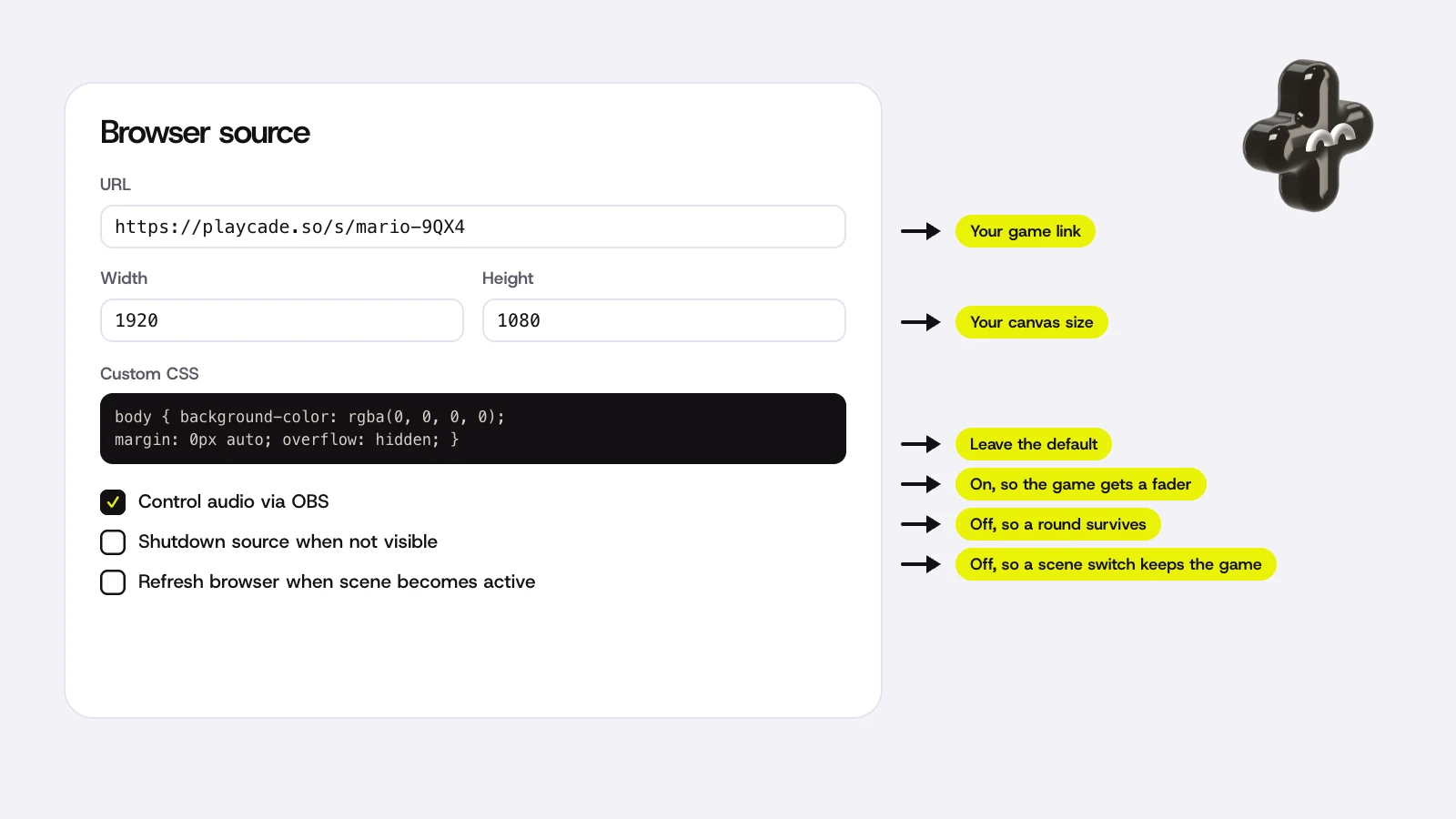
| URL | The page's link | OBS loads it like a browser tab. |
| Width and Height | Your canvas size, often 1920 and 1080 | The page lays itself out at this size. A small page stretched up looks blurry. |
| Custom CSS | Leave the default | OBS's default makes the page background transparent, so the page can sit over your camera. |
| Shutdown source when not visible | Off for games and timers | If it's on, hiding the source unloads the page, and whatever it was doing is lost. |
| Refresh browser when scene becomes active | Off for games and timers | If it's on, switching back to the scene reloads the page and starts it over. |
| Control audio via OBS | On | The page's sound shows up in the audio mixer, so you can set its volume. |
Unloads the page when the source is no longer visible.
That's harmless for an alert box. A game unloaded in the middle of round 4 loses the round, so leave both reload options off for anything that keeps score.
Click inside a Browser source
Some pages need a click, like a start button or a login. In OBS, right click the Browser source and choose Interact. A window opens where you can click and type in the page without showing your mouse on stream.
StreamArena games don't need it. In OBS, your viewers scan the code the game shows on screen, or open its short link, and play in their phone's browser with no app. Guests on camera join the same way, as shown in guests.
Fixes for common problems
The source is blank or white
Open the same link in a normal browser first. If it loads there, open the source's properties in OBS and click Refresh cache of current page. If the background is white instead of see through, put OBS's default custom CSS back.
The page is blurry or cut off
The width and height probably don't match your canvas. Set them to the canvas size, then right click the source and choose Transform, then Fit to screen.
There's no sound
Turn on Control audio via OBS in the source's properties. The page then gets its own fader in the audio mixer. Check that it isn't muted there.
The page restarts when you switch scenes
Turn off Shutdown source when not visible and Refresh browser when scene becomes active. If you use the source in two scenes, add it to the second one with Add Existing, so both share one page.
Streamlabs Desktop and Meld Studio
Other streaming apps work the same way. In Streamlabs Desktop, click + under Sources, choose Browser Source, name it and paste the link. Streamlabs also has Interact on the right click menu, as its browser source post shows.
In Meld Studio, add a Browser layer and paste the link. Meld's layer docs list it as a layer type that takes a URL.
On Upstream.so a StreamArena game needs no source at all. It's a ready scene in your studio, and Upstream.so's Multi-chat brings in your YouTube, Twitch and Kick chat, so viewers can play by typing. The game runs in the cloud, so it can stay live while your computer is off.
Lay out a game over your camera
Two layouts work well. A full screen game scene suits a dedicated game break, with your camera in a corner. A smaller game in the corner works when you want to keep talking while people play.
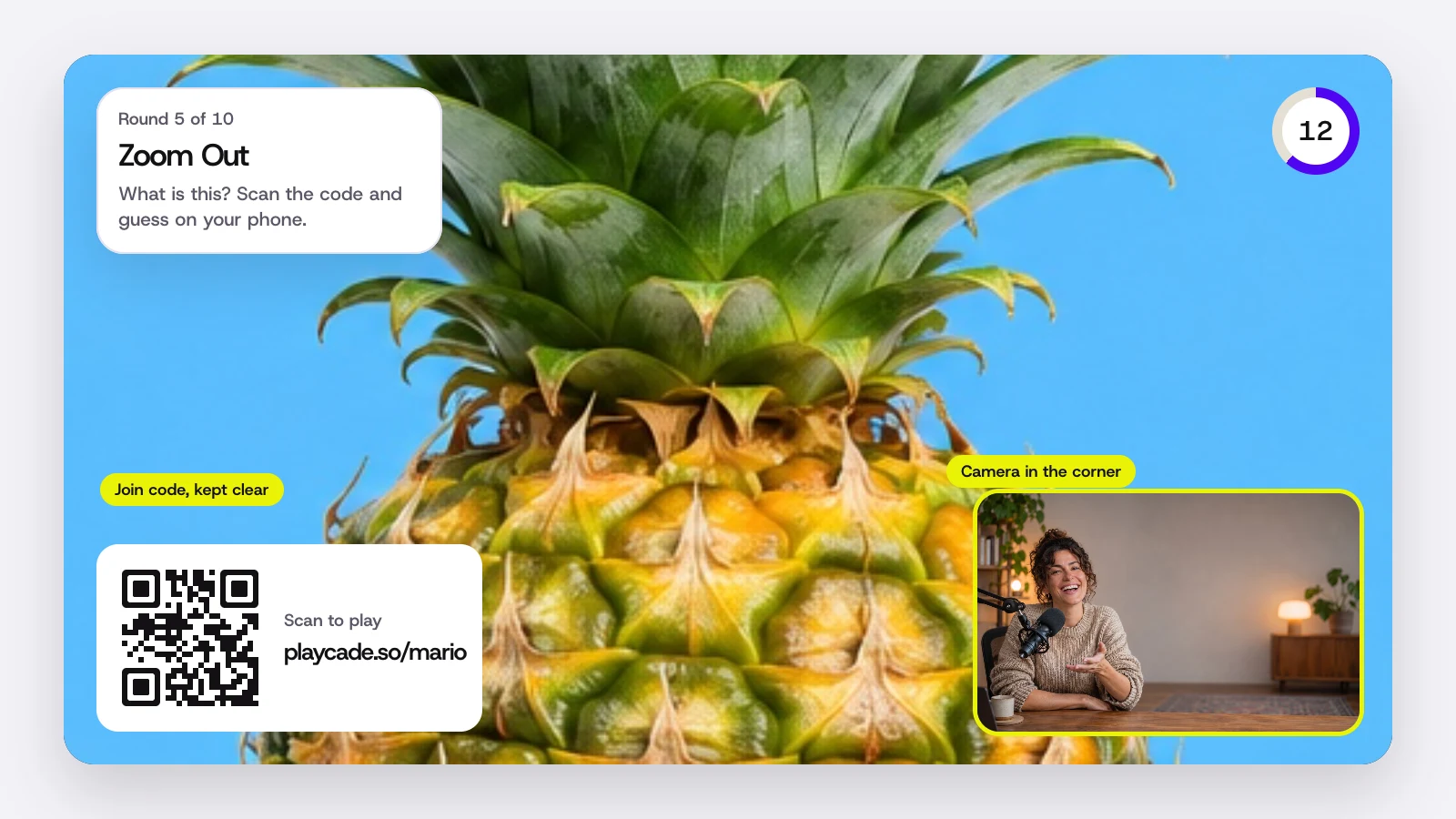
Keep the join code visible. In OBS it's how viewers get in, so don't put your camera or a chat box on top of it. Make a separate scene called Game, so you can switch to it with one hotkey, and keep your camera in that scene too, where people can see you react to the reveal.
The how it works section on our homepage shows the three steps for a game, and the lineup has filters for small chats, guests and team battles.
Questions
What size should a browser source be?
The same size as your canvas, which is 1920 by 1080 on most streams. Set it in the source's properties, then resize the source in the preview if you want it smaller on screen.
Can I use the same browser source in two scenes?
Yes. In the second scene, add it with Add Existing instead of creating a new one. Both scenes then share one page, so a game or a timer keeps going when you switch.
Will a browser source slow down my stream?
OBS draws the page like a browser tab, so it uses some CPU and GPU. If you see dropped frames, check that browser source hardware acceleration is on in OBS's advanced settings, and close sources you don't need.
Sources
- OBS Studio knowledge base, Browser Source
- Streamlabs, Browser source interaction in Streamlabs Desktop
- Meld Studio docs, Layers
Checked on October 21, 2026. Platform features change, so open the page before you rely on a detail.